Quiz Entry - updated: 2026.10.20
What steps set up user certificate autoenrollment in an AD CS domain?
Duplicate the User template and give Domain Users Read, Enroll and Autoenroll; publish the template on the CA; enable "Certificate Services Client – Auto-Enrollment" in a GPO linked to the users' OU.
- Duplicate the template. In Certificate Templates (Manage), copy the built-in User template rather than editing it. Built-in templates are an old schema version, and the copy gets its own name, validity (here one year, renewal six weeks before expiry) and settings.
- Set permissions. On the copy's Security tab give Domain Users Read, Enroll and Autoenroll. Enroll lets a user request the certificate; Autoenroll lets the client do it without asking.
- Issue the template. In the CA console, Certificate Templates, then New, then Certificate Template to Issue. An unpublished template exists in AD, but this CA will not issue from it.
- Configure the GPO. Create a GPO, link it to the OU that holds all employees (here
Switzerland, so admins are included), and set User Configuration, then Policies, Windows Settings, Security Settings, Public Key Policies, Certificate Services Client – Auto-Enrollment to Enabled, with "Renew expired certificates, update pending certificates and remove revoked certificates" and "Update certificates that use certificate templates" ticked. - Log on again. At the next logon or policy refresh the client sees an allowed template, requests the certificate and stores it in the user's Personal store.
It is User Configuration because the certificate identifies the person. Computer certificates use the same setting under Computer Configuration.
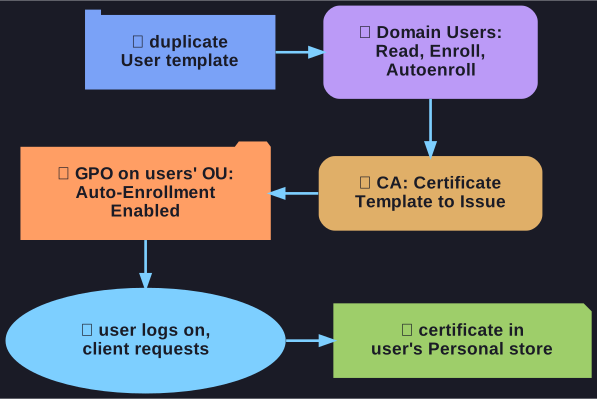
* The pieces that must all be in place for autoenrollment. *
Go deeper:
 Microsoft Learn: Certificate template concepts — template versions and the Read / Enroll / Autoenroll permissions.
- Microsoft Learn: Configure certificate auto-enrollment — the same template-then-GPO procedure, for computer certificates.